
October 25, 2026 · 9 min read
Backup WhatsApp before switching phones: a checklist
New phone, factory reset, Android to iPhone or a lost number: save the 64-digit key, force a fresh backup, check its timestamp and keep a copy that outlives the phone.
backup whatsapp before switching phoneswhatsapp backup before factory resetwhatsapp android to iphone backup
Most WhatsApp disasters happen in the ten minutes before a phone swap. Someone taps Reset, or hands the old phone to a trade-in counter, and only then finds out the backup was three weeks old, or encrypted with a key nobody wrote down. This checklist is the boring version that works.
The steps are the same whether you're upgrading to a new Android, factory resetting the one you have, moving from Android to iPhone, or about to lose access to a phone number. In every case there's a moment after which the old phone, or the old number, is gone. Everything below has to be done before that moment, in this order, and each step has a quick way to check it actually worked.
Do not wipe anything until the last step passes
The local backup lives on the phone's own storage. A factory reset erases it along with everything else. Keep the old phone untouched until you've opened a copy of your chats somewhere that isn't the phone.
The checklist at a glance
- 01Make sure the backup is protected by a 64-digit key, and save that key somewhere off the phone.
- 02Force a fresh local backup in WhatsApp.
- 03Check the backup's timestamp, not just that a file exists.
- 04Copy the backup off the phone, to a computer.
- 05Turn it into a permanent archive you can open without the phone or the account.
- 06Open the archive and spot-check a few chats. Only then reset, trade in, or switch.
1. Save the 64-digit key first
Modern Android WhatsApp backups are end-to-end encrypted Crypt15 files. Without the key that encrypted them they are just bytes, and nobody can recover that key for you, including Meta. So the key comes before everything else on this list.
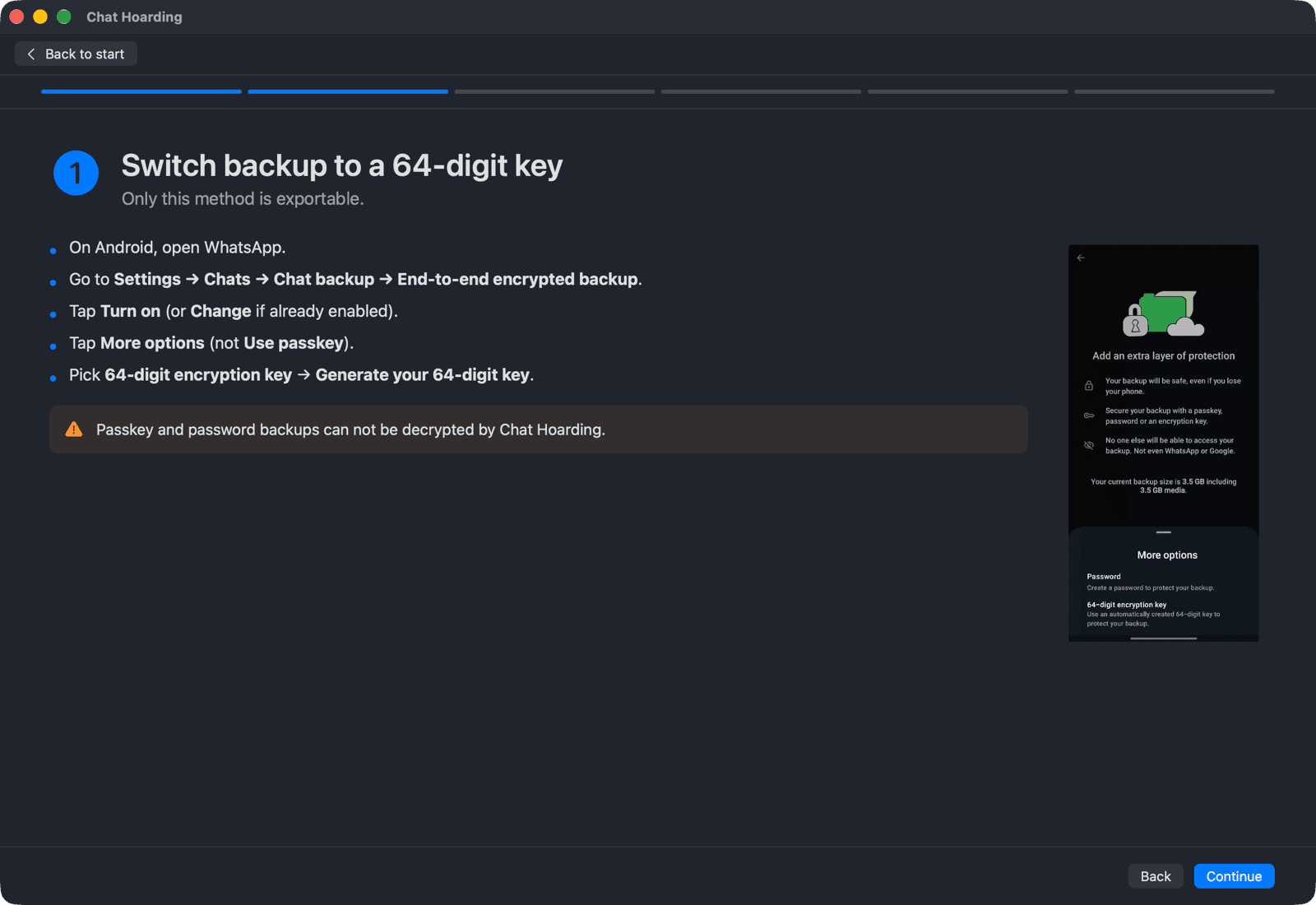
WhatsApp lets you protect the encrypted backup with a password, a passkey, or a 64-digit encryption key. For the purpose of keeping your chats outside WhatsApp, the 64-digit key is the one you want: it's the only option Chat Hoarding for Mac can decrypt. If you're not on it yet, switch now:
- 01On Android, open WhatsApp.
- 02Go to Settings → Chats → Chat backup → End-to-end encrypted backup.
- 03Tap Turn on (or Change if it's already enabled).
- 04Tap More options (not Use passkey).
- 05Pick 64-digit encryption key → Generate your 64-digit key.
- 06Long-press the key block, tap Copy, and paste it into a password manager.
- 07Tap Continue → I Saved My 64-digit Key, then tap Create on the next screen.
Store the key where it survives the phone: a password manager, or a printed copy somewhere safe. Not in a WhatsApp message to yourself, and not only in a screenshot on the phone you're about to wipe. There's a longer guide to finding and storing it at Find your 64-digit WhatsApp encryption key.
2. Force a fresh local backup
WhatsApp backs up on a schedule, usually overnight, so the file on the phone can be most of a day old. Everything you said since then isn't in it. Right before a switch, trigger one by hand:
- 01WhatsApp → Settings → Chats → Chat backup.
- 02Tap Back up.
- 03Keep WhatsApp open and the phone awake, ideally on Wi-Fi and a charger. Large media histories take a while.
- 04Wait until Last backup shows the current time. If it stalls, tap Back up again.
Even if you also back up to Google Drive, the file you care about here is the local one. It's written to the phone's storage at Android/media/com.whatsapp/WhatsApp/Databases/msgstore.db.crypt15 (WhatsApp Business uses com.whatsapp.w4b). The full breakdown of that folder, including the dated rolling copies, is at Where Android WhatsApp stores backups.
3. Verify the timestamp, not just the file
A backup file existing proves very little. Plenty of people find a msgstore.db.crypt15 from last month and assume they're covered. What you want to confirm is that the file was written a few minutes ago.
- In WhatsApp: Chat backup shows Last backup with a time. It should be today, a few minutes ago.
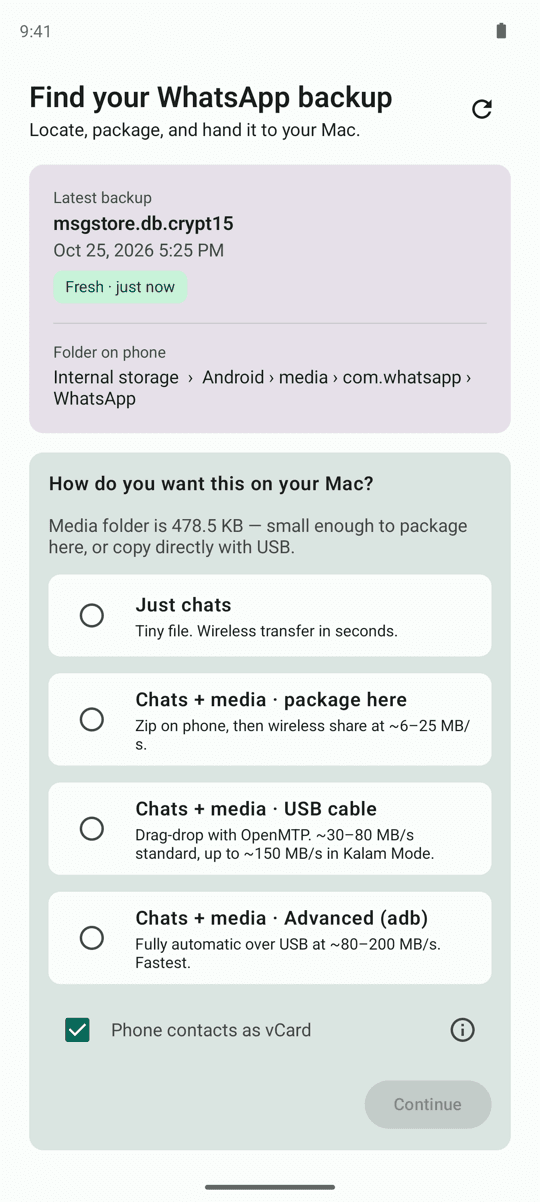
- In Chat Hoarding for Android: after you tap Grant file access, the app finds the backup folder and shows a Latest backup card with an age chip. Fresh means under two hours old, and Within a day means two to 24 hours. Old backup (a day to a week) and Very old (over a week) mean you should go back to step 2 first.
- In Chat Hoarding for Mac's Advanced (adb) tier: each found folder shows its age (just now, 3h ago, 2d ago), and the app warns when a selected backup is old, pointing you back to Chat backup → Back up.
If you run both WhatsApp and WhatsApp Business on the same phone, check both. They have separate backups and separate keys, and the companion shows them as separate tabs.
4. Get the backup off the phone
A backup that only exists on the phone you're about to reset isn't a backup. Copy it to your Mac. There are three ways, and they all end in the same place:
| Path | What you do | Best for |
|---|---|---|
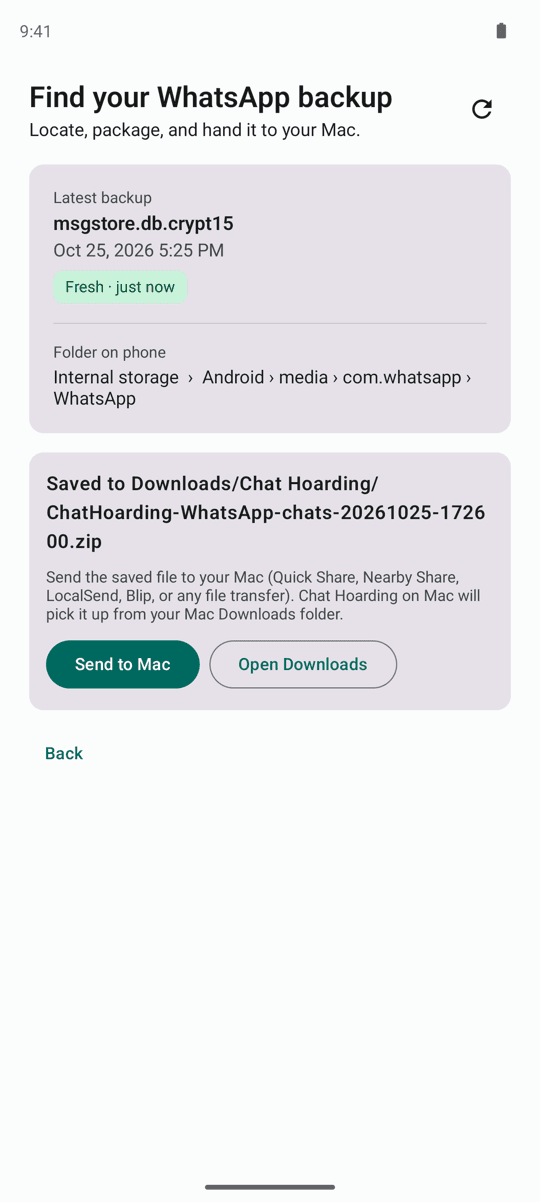
| Easy (companion app) | Install Chat Hoarding for Android, grant file access, pick Just chats or Chats + media · package here, leave Phone contacts as vCard on, tap Continue, then Send to Mac via Quick Share, LocalSend, Blip or any file transfer app. | Backups under a few GB, no cable |
| Medium (USB + OpenMTP) | Plug the phone in, switch USB to file transfer, and drag Internal storage → Android → media → com.whatsapp → WhatsApp to your Mac in OpenMTP. | Big media folders, any size |
| Advanced (adb) | Turn on USB debugging, plug in, tap Allow, and let Chat Hoarding for Mac pull the WhatsApp folder and your phone contacts over USB. | Fastest, repeat pulls are one click |
Chat Hoarding for Android has no INTERNET permission, so it can't upload anything itself. It finds the backup, packages it into Internal storage/Download/Chat Hoarding/, and hands the file to whatever transfer app you choose. With Just chats the file is tiny and moves in seconds. If your media folder is large, the app tells you it's too big to zip on the phone and points you to the USB options.
Bring your contacts along
WhatsApp's backup holds phone numbers, not names. WhatsApp's own contacts database (wa.db) sits in the app's private storage and needs root, so it's never part of this. Leave Phone contacts as vCard on in the companion and attach that vCard when you create the archive (or use the Advanced tier, which pulls contacts automatically), and the archive will show Mom and Sarah K. instead of raw +XX numbers in group chats.
5. Make a permanent archive
At this point you have an encrypted file on your Mac. That's progress, but it still depends on WhatsApp: the only thing that can read it is a WhatsApp install restoring onto the same account. If the restore on your new phone fails halfway, or you're moving to iPhone where Android backups don't restore directly, or you lose the number, that file is all you have. Decrypting it into an archive removes the dependency.
- 01Open Chat Hoarding for Mac. On the start screen, Get a backup walks you through the steps above. On the Easy and Medium paths it ends at Open the archive: click Choose WhatsApp Folder… and pick the folder, the .crypt15 file, or the .zip you received.
- 02The Create archive form opens with the WhatsApp folder already picked. Under Paste the 64-digit encryption key, paste the key from step 1. The counter turns green at 64/64.
- 03Under Add contact names (optional), click Pick file… and choose your contacts file. From the companion, that's the contacts.vcf inside the .zip it sent (double-click the .zip in Finder to unpack it). The Advanced tier fills this in for you.
- 04Under Choose where to save, click Choose…. The default name is WhatsApp-YYYY-MM-DD.tarc, which is handy when you keep one per phone.
- 05Click Create. Decryption runs on your Mac. When it says Saved, click Open and click into a couple of chats to make sure they look right.
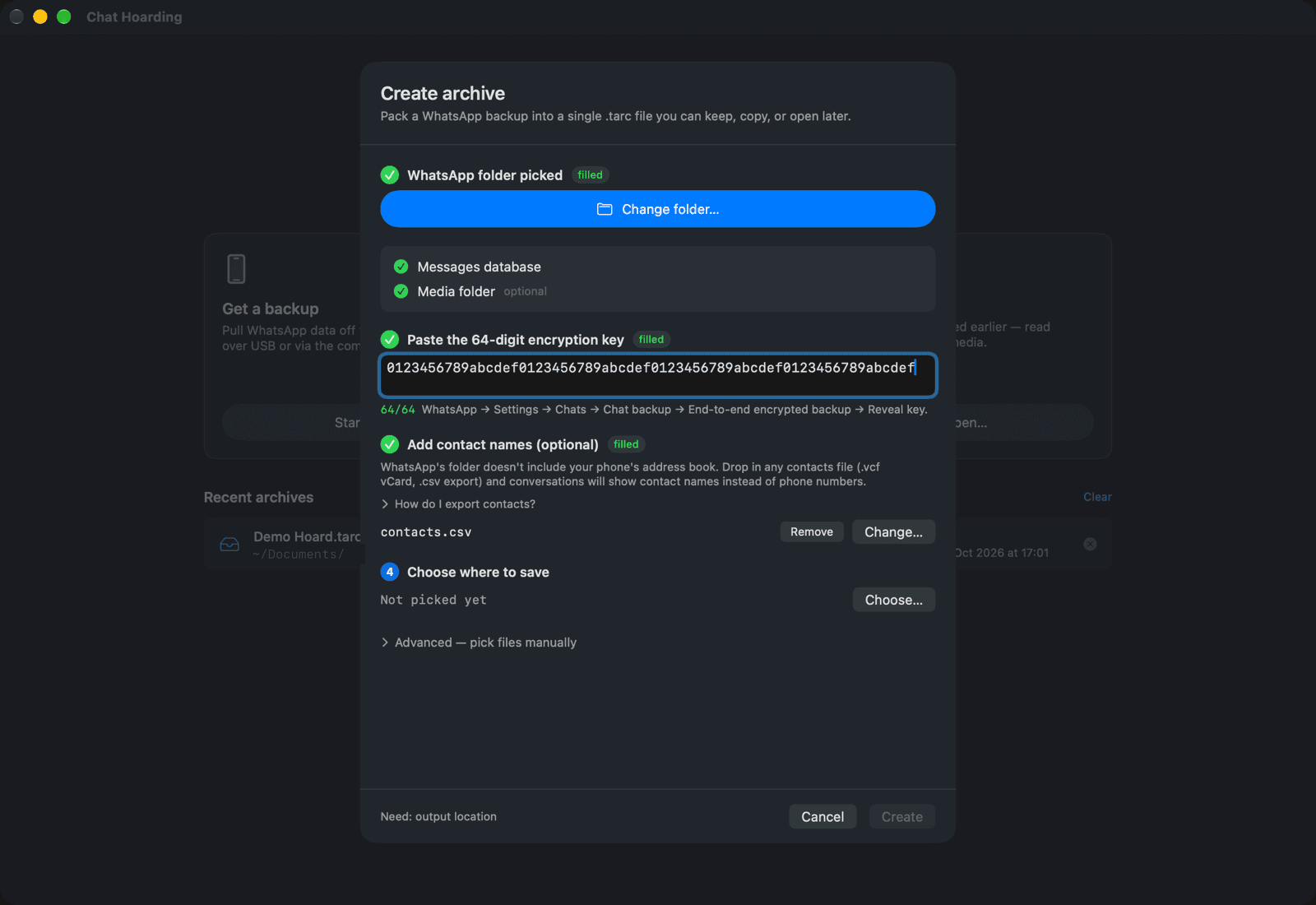
Already have the WhatsApp folder on your Mac from an earlier USB copy? The Create archive card on the start screen opens the same form directly: Pick the WhatsApp folder, Paste the 64-digit encryption key, Add contact names (optional) with a .vcf or .csv, Choose where to save, then Create.
The .tarc is a single macOS package holding a manifest, the decrypted msgstore.db, an optional contacts.json built from your vCard or CSV, any in-app name mappings, and the media folder if you brought it. It doesn't need the phone, the number, or a WhatsApp account to open. Copy it to an external drive and a second location you trust.
6. Verify the chats open, then switch
This is the step people skip, and it's the only one that proves the others worked. Before you reset or hand over the phone:
- Click Back to start (the house icon in the toolbar), then use Open archive → Open… to open the .tarc you just saved. It also shows up under Recent archives.
- Open your most important chat and scroll to the last message. It should be from today, which confirms steps 2 and 3 really happened.
- Open a group chat. Senders should show names if you included contacts. A few unknown numbers are normal for people not in your address book.
- Use Search chats, names, messages to find something you know you sent last week.
- If you brought media, open a photo and play a voice note.
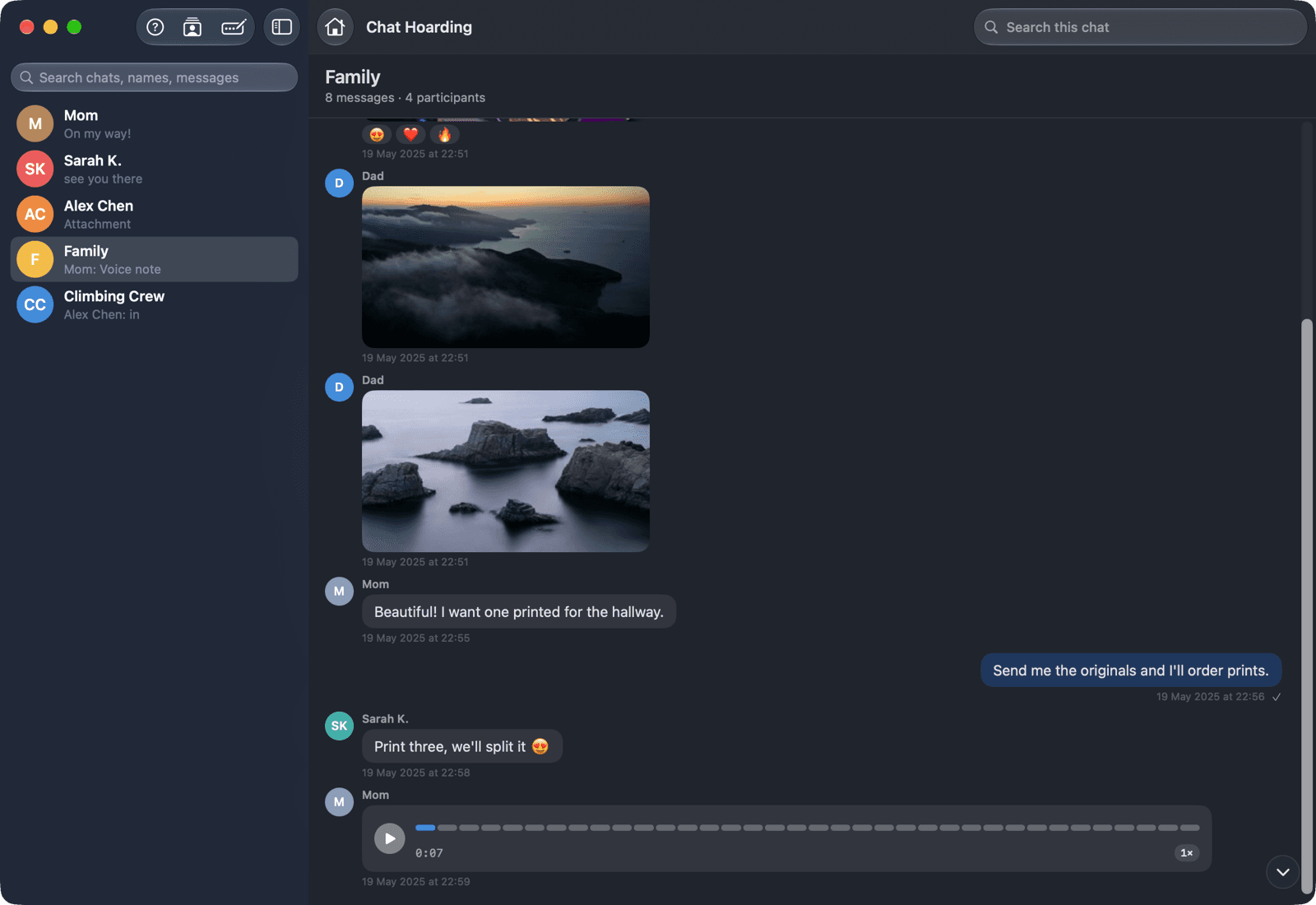
All good? Now do the switch the normal way: restore onto the new Android, run WhatsApp's own Android-to-iPhone transfer, or reset the phone. Whatever happens with that restore, you already have a copy that doesn't depend on it.
Notes for each scenario
Moving to a new Android phone
WhatsApp's own restore usually works, and you should still use it. The archive is insurance for when it doesn't, and a fixed snapshot of how your chats looked on the day you switched. Keep the old phone intact until the new one has finished restoring and you've opened a few chats there too.
Factory resetting the same phone
A reset erases the local backup folder. If your only other copy is a cloud backup, you're trusting a single snapshot that the next backup can overwrite. Copy the file to your Mac and make the .tarc first, every time.
Switching from Android to iPhone
iPhone WhatsApp doesn't produce a Crypt15 backup you can pull and decrypt, and Chat Hoarding doesn't import from iPhone today. So the Android phone, before you migrate, is your last easy chance to make an archive you control. Do this whole checklist first, then run WhatsApp's transfer to the iPhone.
Losing or giving up a phone number
If you can, use WhatsApp's Change number option while you still have the old SIM. If you're about to lose the number outright (an expiring contract, leaving a country, a work phone going back), make the archive now. Once you can't receive the verification code, restoring the backup into WhatsApp gets much harder, but a .tarc on your Mac doesn't care about the number at all.
FAQ
Isn't the Google Drive backup enough?
It's useful for restoring onto a new Android with the same account, but it only holds the latest snapshot, and it's tied to that WhatsApp account and Google account. A local copy on your Mac, turned into a .tarc, keeps working even if the restore fails or you lose the number.
I set up my backup with a password. Can I still do this?
Not with that backup. Chat Hoarding for Mac can't decrypt password or passkey backups. Switch to a 64-digit key in Settings → Chats → Chat backup → End-to-end encrypted backup, save the new key, then make a fresh backup as in step 2.
How fresh does the backup need to be?
As fresh as possible. Anything sent after the backup was written isn't in it. The Android companion labels a backup under two hours old as Fresh and tells you to make a new one once it's over a day old. The Mac's adb tier shows each backup's age and warns when a selected one is a day or more old.
My backup is an old .crypt14 or .crypt12 file. Will it work?
No, only Crypt15 is supported. Restore it into WhatsApp on Android, turn on the end-to-end encrypted backup with a 64-digit key, and back up again. The details are in Crypt12 vs Crypt14 vs Crypt15 explained.
Does any of this upload my chats?
No. Chat Hoarding for Android has no INTERNET permission, and decryption happens on your Mac. The only transfer is the one you choose to move the file from the phone to the Mac.
Do I need to keep the old phone afterwards?
Not for the archive. Once the .tarc opens on your Mac and today's messages are in it, it stands on its own. Keep two copies of the .tarc in different places, and keep the 64-digit key in your password manager in case you ever want to decrypt that original backup file again.