
October 25, 2026 · 10 min read
Copy a WhatsApp backup from Android to Mac via USB
Two ways to copy a WhatsApp backup from Android to Mac over USB: drag the folder across in file transfer mode, or turn on USB debugging and let the Mac pull it for you.
copy whatsapp backup android to mac usbtransfer whatsapp backup to macadb pull whatsapp folder
Wireless is fine for a chats-only backup. Once the media folder runs into gigabytes of photos, videos and voice notes, a cable wins every time. There are two cable paths, and one of them does the copying for you.
Chat Hoarding for Mac offers three ways to bring WhatsApp data over from an Android phone, and it labels them Easy, Medium and Advanced. Easy is the companion app plus a wireless share, which works well for backups under a few GB. This post covers the two USB tiers: Medium, where you drag the WhatsApp folder across in file transfer mode, and Advanced, where you switch on USB debugging once and the Mac pulls the folder and your phone contacts on its own.
Both paths copy the same thing: the WhatsApp folder that holds Databases/msgstore.db.crypt15 and the Media folder. If you're not sure where that folder sits on your phone, Where Android WhatsApp stores backups walks through every path WhatsApp has used.
Before you plug in
- A data USB cable. Charge-only cables are common and they will make the phone look dead to the Mac.
- Your 64-digit encryption key, saved somewhere safe. You paste it on the Mac after the copy. Passkey and password backups can't be decrypted, only the 64-digit key route works. See Find your 64-digit WhatsApp encryption key if you haven't set it up yet.
- A fresh backup. On the phone, open WhatsApp → Settings → Chats → Chat backup and tap Back up. Wait until Last backup shows the current time.
- Enough free space on the Mac for the whole WhatsApp folder, media included. A cable copy also needs no spare room on the phone. Packaging media into a zip on the phone does, which is why the companion stops offering the zip once the media folder gets too big.
On the Mac, open Chat Hoarding and click Start on the Get a backup card. The guide walks you through the key and the backup, then lands on a step called Copy the WhatsApp folder to your Mac, where you pick a tier.
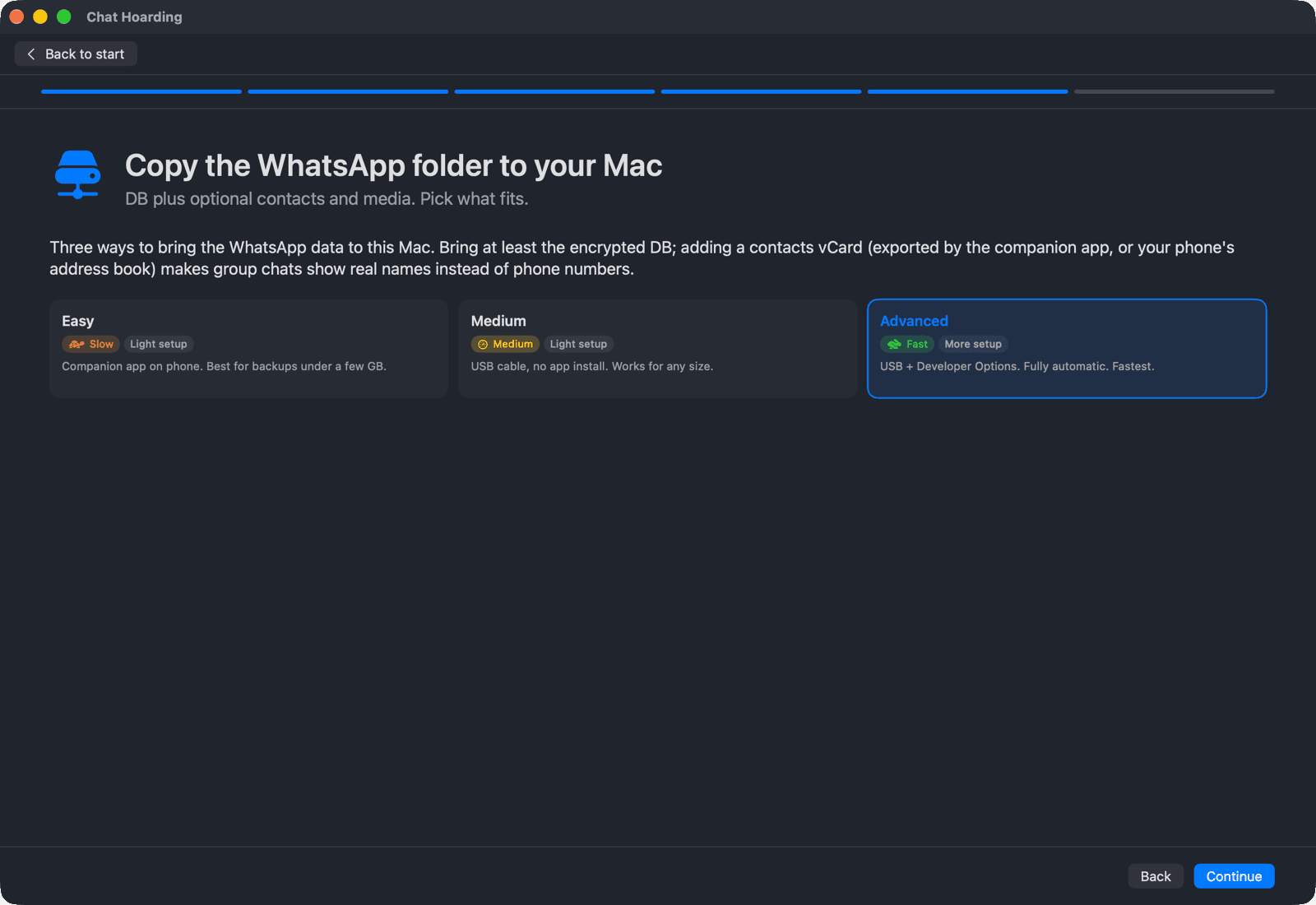
Medium or Advanced: which USB path fits
| Medium | Advanced | |
|---|---|---|
| How it works | USB file transfer mode, you drag the folder in OpenMTP | USB debugging, Chat Hoarding runs its bundled adb |
| Setup | Light setup: install OpenMTP on the Mac | More setup: Developer options, USB debugging, one Allow tap |
| Speed (in-app estimate) | ~30–80 MB/s, ~80–150 MB/s with Kalam Mode | ~80–200 MB/s |
| Contacts | Export a .vcf yourself and add it on the Mac | Pulled automatically as contacts.csv |
| Repeat runs | Drag the folder again every time | Plug in and let the Mac pull it again |
If you only need one archive and don't want to touch developer settings, Medium is fine. If you plan to archive every month or the media folder is huge, the one-time setup for Advanced pays for itself on the second run.
The Medium path: USB file transfer
Android phones show their storage to a computer over MTP. The in-app guide notes that Finder's native MTP support is read-only, so it points you to OpenMTP, a free, open-source MTP browser for the Mac. Samsung owners can also use Smart Switch for Mac if they already have it, at plain MTP speeds.
- 01Install OpenMTP on the Mac. Open its Settings and switch on Kalam Mode, which the app quotes at roughly 80–150 MB/s against 30–80 MB/s for plain MTP.
- 02Plug the phone in. Pull down the notification shade, tap the USB charging notification and switch the mode to File transfer / Android Auto. The wording varies by brand. If the notification doesn't show, unplug and replug, or look under Settings → Connected devices → USB (Settings → Connections → USB on Samsung).
- 03In OpenMTP, go to Internal storage → Android → media → com.whatsapp → WhatsApp and drag the WhatsApp folder to your Mac. For WhatsApp Business the folder is com.whatsapp.w4b → WhatsApp Business.
- 04Wait for the copy to finish completely. The Databases folder is small, the Media folder is where the time goes.
If you already use Chat Hoarding for Android, it has the same walkthrough on the phone. On the How do you want this on your Mac? screen, pick Chats + media · USB cable (the USB options only appear when the phone has a WhatsApp Media folder), leave Phone contacts as vCard ticked and tap Continue. The next screen shows the exact folder path on your phone and a Save contacts to Downloads button that writes a small .vcf to Internal storage/Download/Chat Hoarding/, so you can drag both across in the same OpenMTP session.
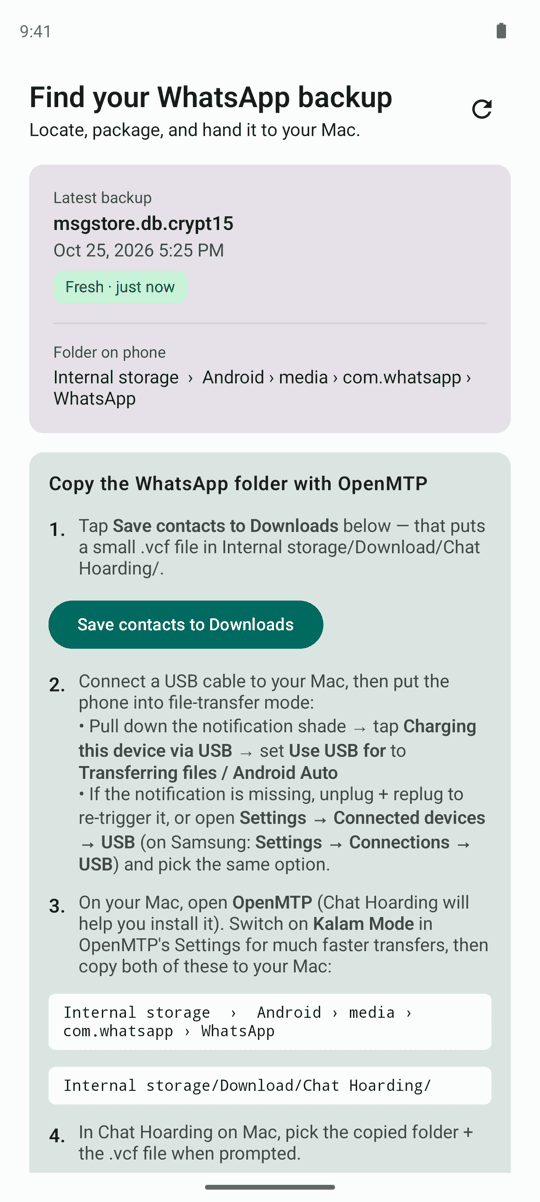
Contacts on the Medium path
WhatsApp stores chats by phone number, not by name. Its own contacts list (wa.db) sits inside the app's private sandbox, which MTP can't reach, and Chat Hoarding doesn't read it. Names come from your phone's address book. On the Medium path you export it yourself: either with the companion's Save contacts to Downloads button, or from the phone's Contacts app (look for Export to .vcf under Settings or Manage contacts). Copy the .vcf over the same way as the folder.
Skipping contacts is fine
Chats still open without a contacts file. Unsaved numbers and group members just show up as raw phone numbers. You can add the .vcf on the Mac at the Add contact names (optional) step.
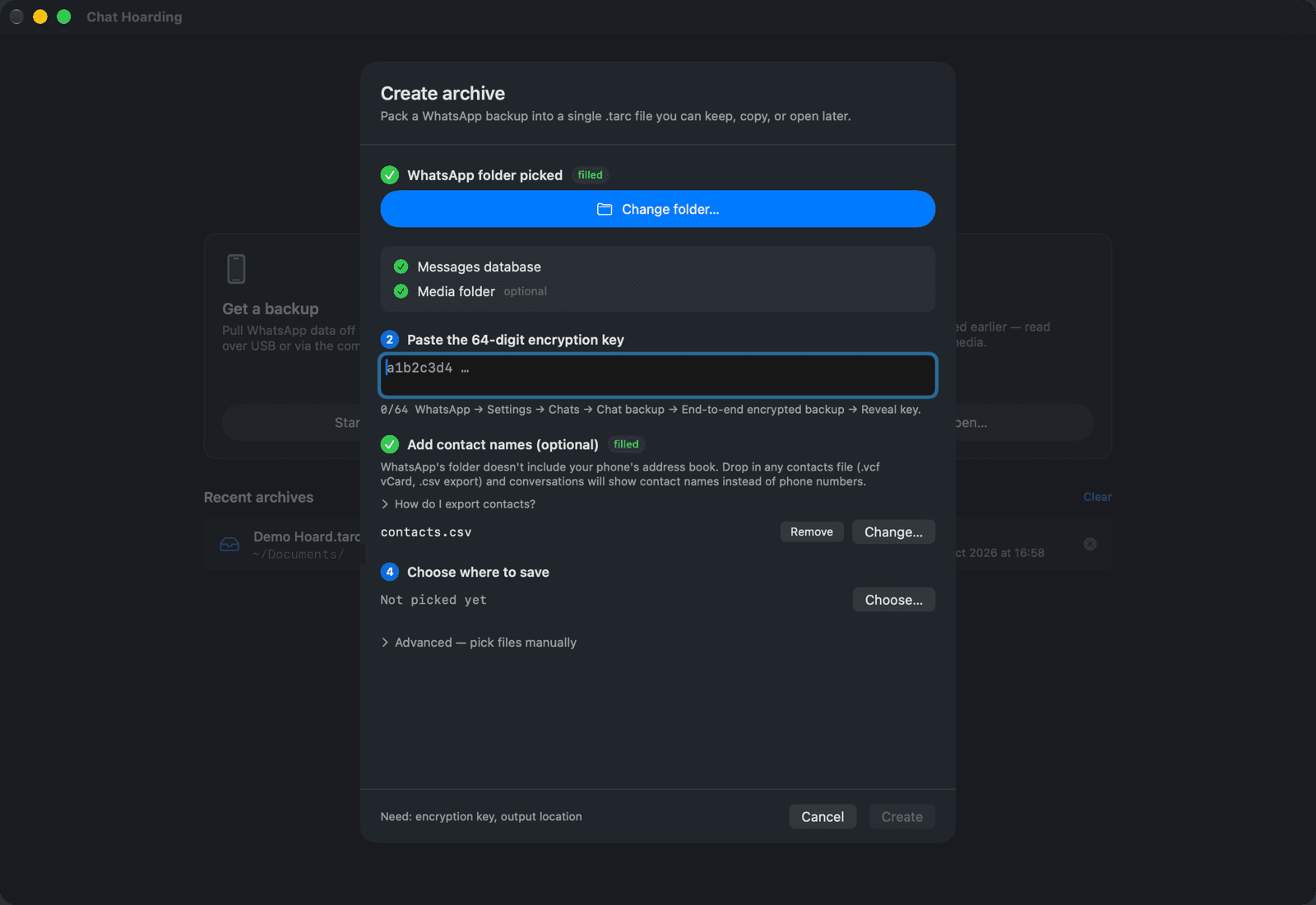
Back on the Mac, the Medium guide shows these steps, then a short Add your contacts separately page, and ends on Open the archive. Click Choose WhatsApp Folder… and pick the folder you copied. Chat Hoarding opens the Create archive panel with the folder already filled in.
The Advanced path: turn on USB debugging
USB debugging lets a computer talk to the phone through adb, Android's own debugging tool. Chat Hoarding ships adb inside the Mac app, so there's nothing to install with Homebrew and no Terminal. You turn it on once per phone.
- 01On the phone, open Settings → About phone and tap Build number seven times until you see "Developer mode turned on". Android may ask for your PIN.
- 02Go to Settings → Developer options and switch on USB debugging.
- 03Plug the phone into the Mac with a data USB cable.
- 04On the phone, tap Allow when "Allow USB debugging?" appears. Android's prompt also offers to always allow this computer, which saves you the tap on every later run.
Build number isn't always on the first About phone screen. The companion app lists where it hides on common brands: on Samsung it's About phone → Software information → Build number, on Xiaomi, Redmi and POCO you tap MIUI version (or HyperOS version) seven times, and on OnePlus, OPPO and realme it's About device → Version → Build number.
In Chat Hoarding for Android, picking Chats + media · Advanced (adb) opens a Use Advanced (adb) on Mac screen that checks both settings for you. It shows Developer options · hidden or USB debugging · OFF with a button that jumps to the right Settings page, and switches to USB debugging · ON once you're done. The companion isn't required for this path, it's just a shortcut to the right screens.
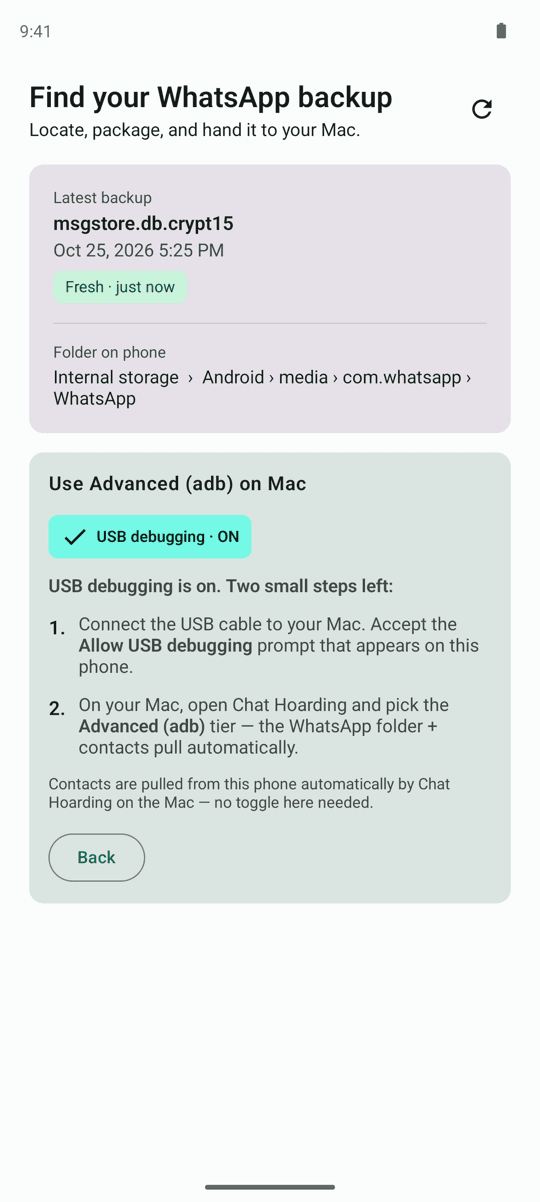
Authorize the Mac and let it scan
On the Mac, pick Advanced and click Continue. The next step is Pull from your phone, and it starts looking for a phone straight away. A status card at the top tells you what's happening:
- No phone detected: the Mac sees nothing on USB. Check the cable and that USB debugging is on, then click Retry detection. A How to enable USB debugging link opens the same four steps as above.
- Phone needs your approval: the phone is connected but hasn't trusted this Mac yet. Unlock it and tap Allow, then click Retry detection.
- Scanning folders on [your phone]…: the Mac checks the six places WhatsApp and WhatsApp Business have kept their folder over the years, including the legacy ones. Folders under 1 MB are skipped as empty stubs.
- Phone ready: a summary like "2 folders · 4.2 GB total", with your device name, model and serial underneath.
What the auto-pull screen shows
Once the phone is ready, every WhatsApp folder the Mac found gets its own row with a checkbox, the folder name (WhatsApp, WhatsApp Business, or a -legacy or -appdata variant), the path on the phone, its size, and a freshness badge for the newest backup inside it. The dot is green when the backup is under two hours old, yellow under a day, orange under a week, and red when it's older or the date is unknown.
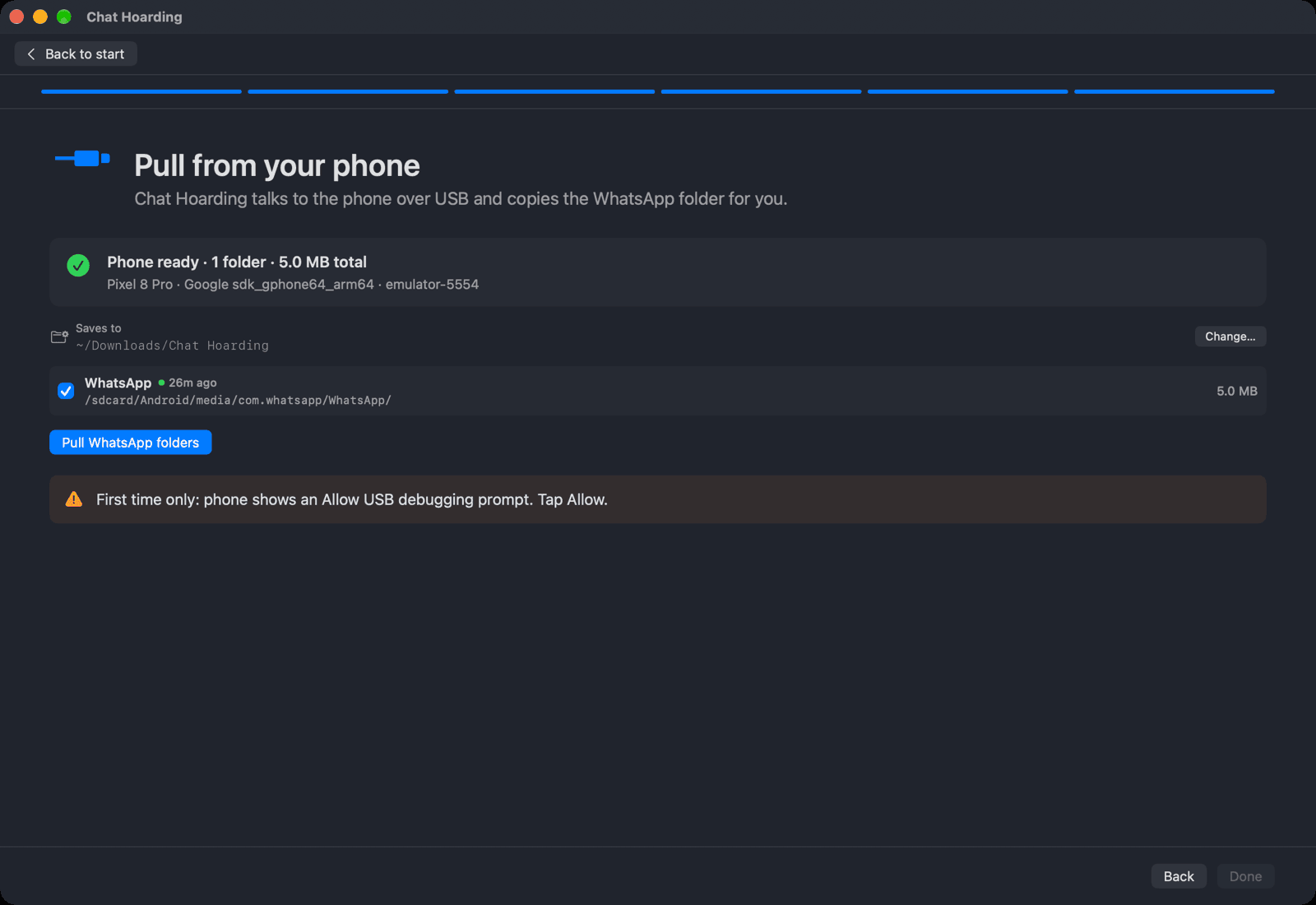
All rows start ticked. Untick anything you don't want, for example the WhatsApp Business folder if you only care about personal chats. If a ticked backup is a day old or more, or its date is unknown, an orange note asks you to tap Back up in WhatsApp first and come back. You can ignore it, but a fresh backup means the archive includes today's messages too.
The Saves to line shows where the copy lands: a Chat Hoarding folder inside your Downloads. Click Change… to pick a different parent folder, such as an external drive. Then click Pull WhatsApp folders.
- 01Pulling WhatsApp…: a live byte counter and percentage, for example "1.8 GB of 4.2 GB · 43%". Cancel stops the transfer.
- 02Copying contacts…: the Mac reads the phone's address book over the same USB connection. Your chat backup is already saved at this point, so a slow address book won't cost you the copy.
- 03Done: each pulled folder is listed with a Reveal button. If you pulled more than one, click Use this on the one you want to archive first.
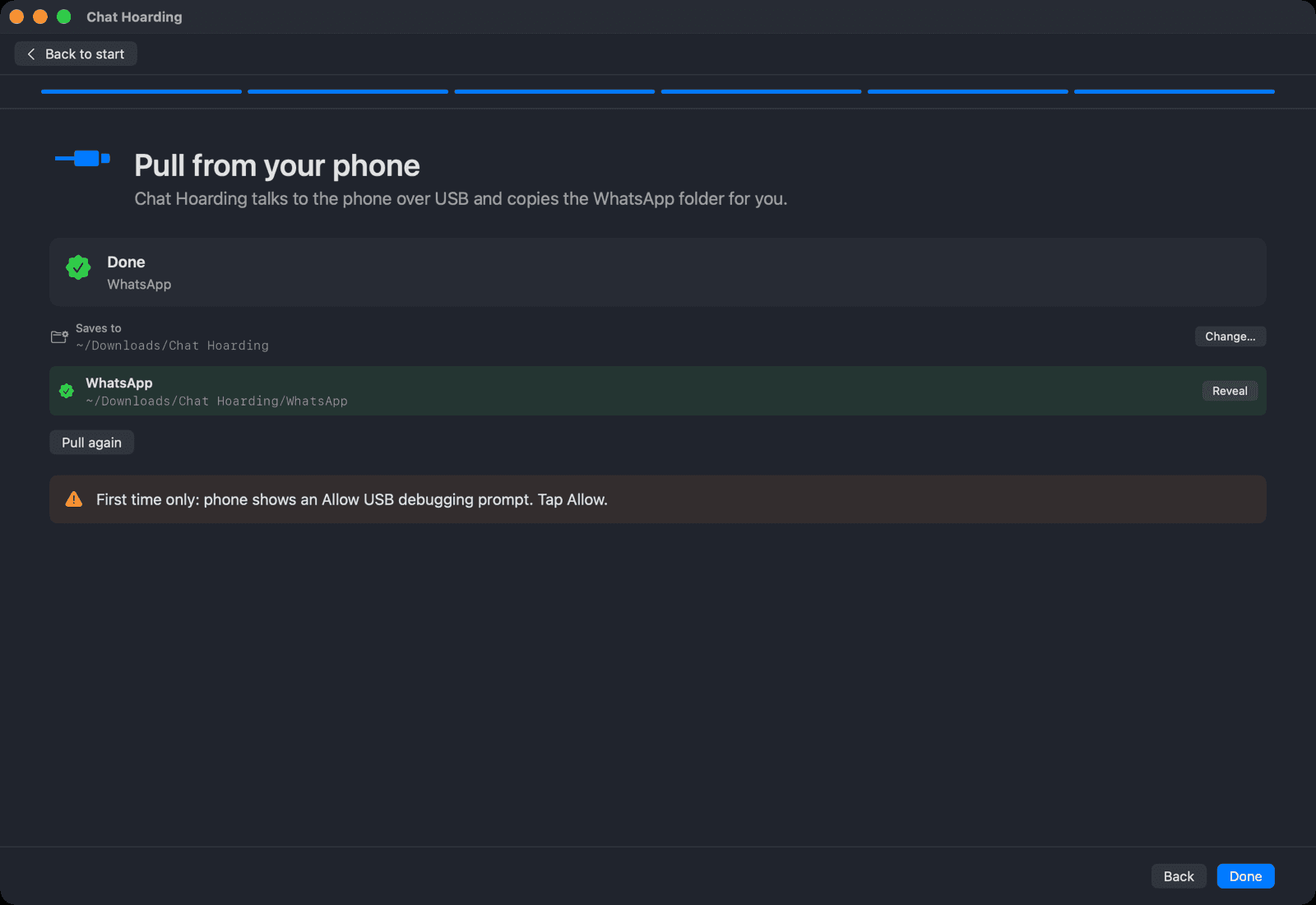
The contacts land next to the pulled folder as contacts.csv, a plain name and phone list. Nothing gets installed on the phone for this, and wa.db isn't involved. When you click Done, the Create archive panel opens with the WhatsApp folder picked and contacts.csv already attached under Add contact names (optional). Paste your 64-digit key, choose where to save, and click Create.
If the transfer stops halfway
Cables wiggle, phones lock, and some media folders contain a file adb can't read. Chat Hoarding treats those cases differently depending on what went wrong:
- The transfer stopped early: whatever was copied stays in the destination folder. You don't lose a multi-GB copy over one bad file. Click Back to start, then Create on the Create archive card, and pick that folder with the Choose folder… button.
- The transfer failed before anything was copied: nothing landed, so check the cable and click Try again.
- You clicked Cancel: the folder that was mid-copy is removed, so you don't end up with a confusing partial copy by accident.
A partial folder is usable as long as Databases/msgstore.db.crypt15 made it across, since that file holds every message. Missing media files just mean some photos or voice notes won't be in that archive. For a complete copy, pull again.
Pulling again into the same folder
If the destination already has a WhatsApp folder, Chat Hoarding asks how to proceed before it copies anything: Replace, Keep Both (adds " 2" to the name) or Choose Another Location…. Keep Both is the safe pick if you want to keep last month's copy around.
After the copy
The message database in the copied folder is still the encrypted Crypt15 file, so nobody can read your chats from it without the key. The Media folder is different: photos, videos and voice notes sit there as ordinary files, so treat the copy as private and delete it once your archive is made if you don't need it. Decryption happens on the Mac when you click Create, and the result is a single .tarc archive you can keep, copy to a drive or open later. If you want a full start-to-finish walkthrough, Archive WhatsApp chats on Mac in 2026 covers the whole flow, and Crypt15 explained covers what happens to the file during decryption.
Once you're done, you can leave USB debugging on for next month's run or switch it off under Settings → Developer options. Turning it back on later only takes the toggle, the seven Build number taps are a one-time thing.
FAQ
Do I need to root my phone for the Advanced path?
No. The WhatsApp folder in Android/media is readable over adb without root, and so is the address book. Root would only matter for WhatsApp's private wa.db, which Chat Hoarding doesn't use.
Do I need to install adb or Android Studio on my Mac?
No. adb ships inside Chat Hoarding for Mac and runs on its own when you reach the Pull from your phone step. There's no Terminal step and nothing to install on the phone.
Why does the Mac say No phone detected when the phone is charging?
Usually a charge-only cable or USB debugging switched off. Try another cable, confirm USB debugging is on under Developer options, and click Retry detection. If the status changes to Phone needs your approval, unlock the phone and tap Allow.
Can I copy just the database and skip the media?
On the Medium path, yes: copy just msgstore.db.crypt15 from the WhatsApp/Databases folder, then pick that file at the Open the archive step, since Choose WhatsApp Folder… also accepts a single .crypt15 file. The Advanced path pulls the whole WhatsApp folder, media included. If all you want is the chats, the companion's Just chats option is a tiny file that sends wirelessly in seconds.
Does this work with WhatsApp Business?
Yes. WhatsApp Business keeps its own folder under com.whatsapp.w4b. On the Medium path you drag that folder, and on the Advanced path it shows up as its own WhatsApp Business row you can tick or untick. Business has its own 64-digit key, so keep both keys if you run both apps.
Which backup formats can I copy this way?
Any file copies fine, but Chat Hoarding only decrypts Crypt15, the end-to-end encrypted format WhatsApp has used since 2021, and only with the 64-digit key. If your phone still writes Crypt14 files, switch on the end-to-end encrypted backup with a 64-digit key in WhatsApp and run a new backup first.