
October 25, 2026 · 9 min read
Transfer WhatsApp backup from Android to Mac, no cable
Transfer a WhatsApp backup from Android to Mac with no USB cable: find the Crypt15 file with a companion app, send it wirelessly, then decrypt it with your 64-digit key.
transfer whatsapp backup from android to macwhatsapp backup android to mac wirelesssend whatsapp backup to mac without cable
Macs and Android phones have never been great at talking to each other over a cable. macOS has no built-in way to copy files from an Android phone, and the old Android File Transfer app is gone. The good news is that you don't need a cable at all to move a WhatsApp backup. You need the right file, a wireless hop, and your 64-digit key.
This guide covers the Easy path in Chat Hoarding: a small Android app finds your WhatsApp backup, packages it, and hands it to whatever wireless transfer you already use. On the Mac, Chat Hoarding decrypts it locally and saves it as a .tarc archive you can keep forever. If your media folder is huge, there are faster USB paths too, and we'll point out when it's worth switching.
What you need
- An Android phone running Android 8.0 or newer with WhatsApp or WhatsApp Business installed
- End-to-end encrypted backup turned on with the 64-digit key option (not a password or passkey)
- Your 64-digit key saved somewhere safe, like a password manager
- A Mac running macOS 14 or newer with Chat Hoarding for Mac installed and activated
- Chat Hoarding for Android, the companion app (it shows up as Chat Hoarding on the phone)
- One wireless transfer method that works on both devices: LocalSend, a Quick Share receiver, Google Drive, or similar
Only the 64-digit key works
WhatsApp offers three ways to protect a backup: a password, a passkey, or a 64-digit encryption key. Chat Hoarding can only decrypt backups made with the 64-digit key. If you're not sure which one you set up, read Find your 64-digit WhatsApp encryption key (Find your 64-digit WhatsApp encryption key) first. It covers where WhatsApp shows the key and how to switch modes.
How the wireless path works
WhatsApp writes its backup to a folder on your phone every night, usually Android/media/com.whatsapp/WhatsApp/Databases/msgstore.db.crypt15. That file is encrypted under your 64-digit key, so moving it around is safe as long as the key stays with you. The tricky part is that most file managers bury that folder, and Android's share sheet can't send a whole folder of media.
The companion app solves both. It scans the known WhatsApp backup locations (current and legacy, for both WhatsApp and WhatsApp Business), shows you the newest backup, and writes a single file to your phone's Downloads. From there, you send that one file to your Mac like any photo or PDF. If you want the full background on where the file lives and why, see Where Android WhatsApp stores backups (Where Android WhatsApp stores backups).
Step 1: make a fresh backup on the phone
- 01Open WhatsApp on your Android phone.
- 02Go to Settings → Chats → Chat backup.
- 03Check that End-to-end encrypted backup is on, and that you have your 64-digit key saved.
- 04Tap Back up and wait until Last backup shows the current time.
A fresh backup matters because the companion only sends what's on disk. If you skip this, you might archive yesterday's chats and wonder where this morning's messages went.
Step 2: install the companion from your Mac
The easiest way to get the Android app is to start from the Mac. Open Chat Hoarding, click Start on the Get a backup card, and step through the setup screens. On the screen titled Copy the WhatsApp folder to your Mac, pick the Easy tier and click Continue. The next screen shows a QR code. Scan it with your phone's camera to download the companion.
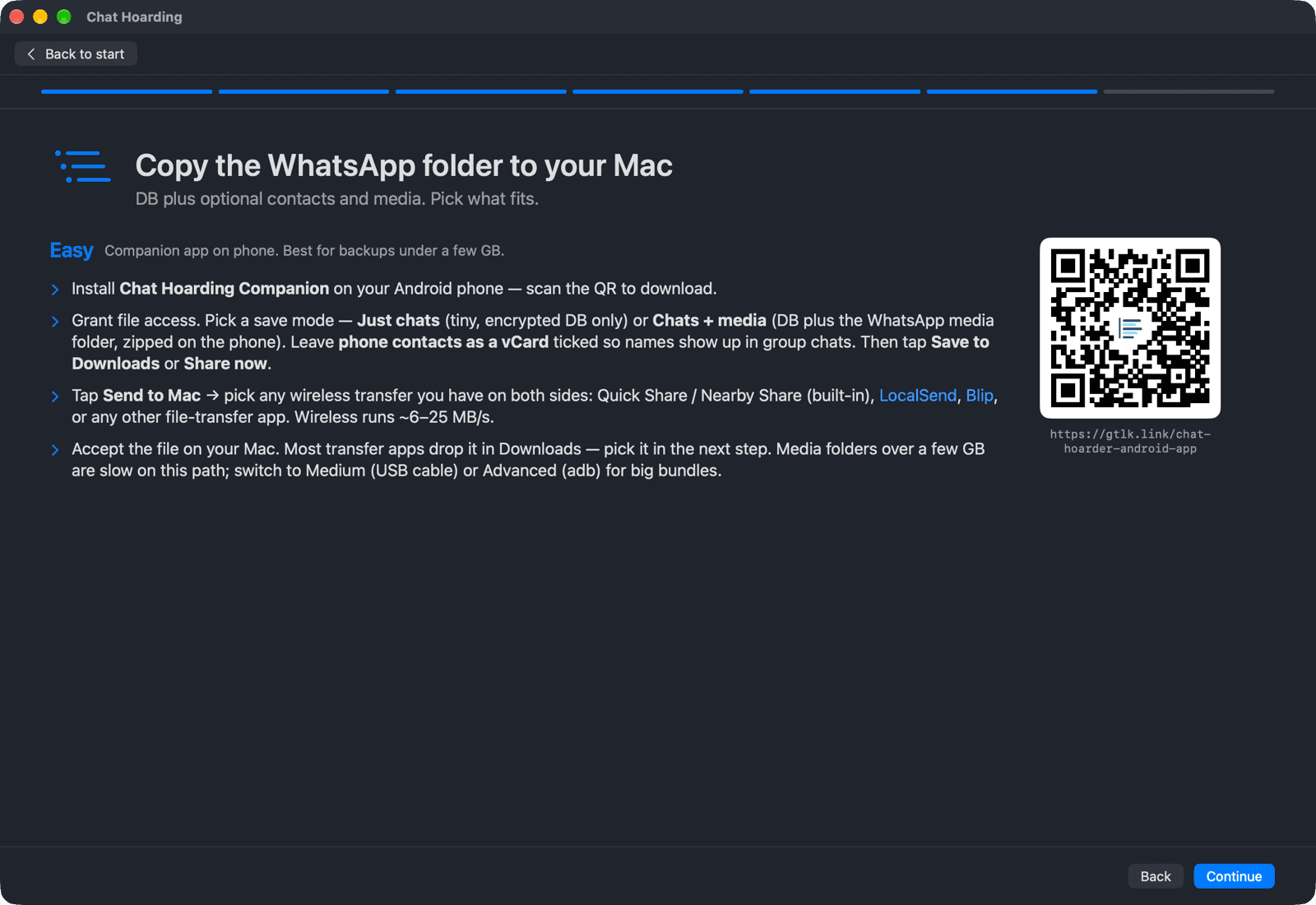
Open the app on your phone. On Android 11 and newer, the first screen says full file access is needed to find WhatsApp backups. Tap Grant file access, switch the toggle on in Android's settings page, and come back. The app has no INTERNET permission at all, so it can't upload anything even if it wanted to.
Step 3: let the app find your backup
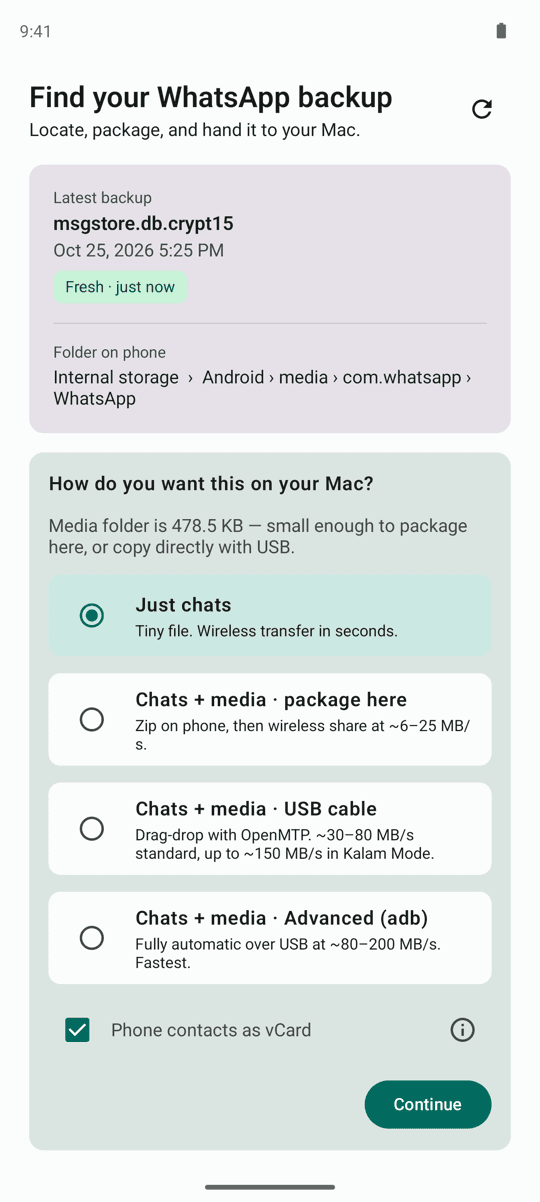
After a short Scanning storage… pause, the app shows a card with your Latest backup: the file name, its date and time, and the Folder on phone it came from. A small chip tells you how old the backup is. Fresh means under two hours, Within a day is self-explanatory, and Old backup or Very old means you should go back to WhatsApp and run a new one before going further.
If you have both WhatsApp and WhatsApp Business on the same phone, you'll see tabs for each one. They have separate backups and separate 64-digit keys, so pick the right tab for the key you have.
If you see No WhatsApp backup folder found instead, WhatsApp hasn't written a local backup yet. Go back to Step 1, make sure end-to-end encrypted backup is on, run a backup, then tap Rescan.
Step 4: choose what to send
Under the backup card, the app asks How do you want this on your Mac? The options you see depend on how big your media folder is. For a cable-free transfer, you want one of the first two.
| Option | What it saves | When to pick it |
|---|---|---|
| Just chats | The encrypted chats database only (zipped together with your contacts if that box is ticked) | You care about the messages, or your media folder is too big to send wirelessly |
| Chats + media · package here | One zip with the Databases folder, the Media folder, and optionally your contacts | Your media fits. The option only appears when the bundle is under 1 GB and your phone has room for the copy |
| Chats + media · USB cable | No chats file on the phone. It shows OpenMTP steps and can save your contacts as a .vcf | Big media folders, if you're fine plugging in |
| Chats + media · Advanced (adb) | Nothing on the phone, it walks you through USB debugging | The fastest path for very large folders |
Below the options there's a checkbox labelled Phone contacts as vCard, ticked by default. Leave it on. WhatsApp stores chats by phone number, and its own contacts database (wa.db) sits in a private folder that no app can read without root. Your phone's address book is how the Mac turns +44 7700 900123 into Sarah K. When you tap Continue with the box ticked, Android asks for contacts permission once.
Why the 1 GB limit
Zipping several gigabytes of photos and videos on a phone is slow, fills storage, and wireless transfers run at roughly 6 to 25 MB/s anyway. Above 1 GB the companion hides the zip option and suggests the USB routes. Picking Just chats is still a perfectly good wireless option: your full message history goes across in seconds, and you can bring the media over by cable later.
Step 5: send the file to your Mac
Tap Continue. The app shows Packaging… with a running byte count, then a banner that starts with Saved to. The file now lives in your phone's Internal storage/Download/Chat Hoarding/ folder. With contacts ticked you get a .zip. With Just chats and contacts unticked, you get a single .crypt15 file.
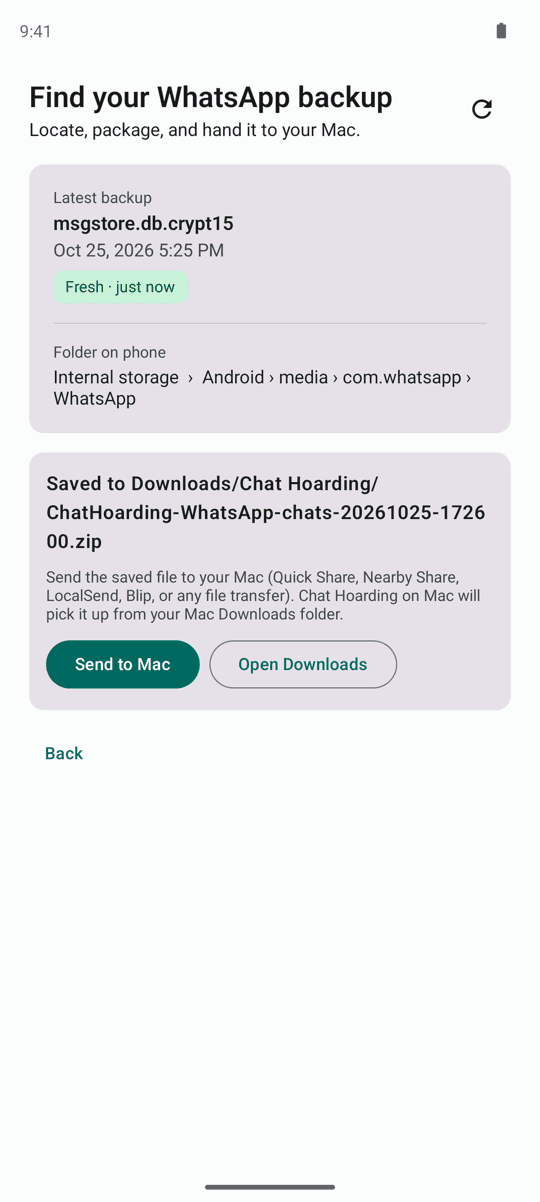
Tap Send to Mac. This opens Android's normal share sheet with the file attached, so any app that can receive files works. The companion itself never sends anything over the network. The app you pick does the transfer. Here's how the common choices compare.
LocalSend (our pick)
LocalSend is free, open source, and runs on both Android and macOS. It sends files directly over your Wi-Fi network, with no account and nothing going through a server. Install it on both devices, keep them on the same network, pick LocalSend in the share sheet, then tap your Mac. The file lands in your Mac's Downloads folder.
Quick Share and AirDrop
Quick Share is built into Android, but Google doesn't ship an official Quick Share app for macOS. Some newer Android phones can send straight to a Mac through AirDrop from the Quick Share menu, and unofficial Mac receivers like NearDrop exist. If one of those already works for you, use it. If not, LocalSend is less hassle.
Google Drive, email, or a messaging app
These work fine for a Just chats file, since it's tiny and the .crypt15 inside is encrypted under your 64-digit key. Upload from the share sheet, then download it on the Mac. Just remember that you're putting a copy in the cloud, so delete it once you're done.
Not everything in the zip is encrypted
The chats database is encrypted, but WhatsApp's Media folder isn't, and neither is the contacts.vcf the companion adds. If you picked Chats + media or left contacts ticked, send the zip over a local transfer like LocalSend. Don't park it in a cloud drive or an email thread.
Step 6: open it on the Mac and enter your key
Back on the Mac, if you're still in the setup flow, click Continue until you reach Open the archive. Otherwise click Start on the Get a backup card again and step through to the same screen.
- 01Click Choose WhatsApp Folder…. Despite the name, the picker accepts a WhatsApp folder, a .crypt15 file, or a .zip archive. Pick the file you just received in Downloads.
- 02The Create archive sheet opens with step 1 already filled. A status panel shows Messages database with a green check, and Media folder if you sent media.
- 03Under Paste the 64-digit encryption key, paste your key. Spaces and other non-hex characters are stripped and capital letters are lowercased automatically, and a counter turns green when it reads 64/64.
- 04Optionally, add your contacts under Add contact names (optional). More on that in the next section.
- 05Under Choose where to save, click Choose… and pick a location. The default name is WhatsApp- followed by today's date and .tarc.
- 06Click Create. You'll see Decrypting messages database…, then Copying media… if you included it. When it says Saved, click Open.
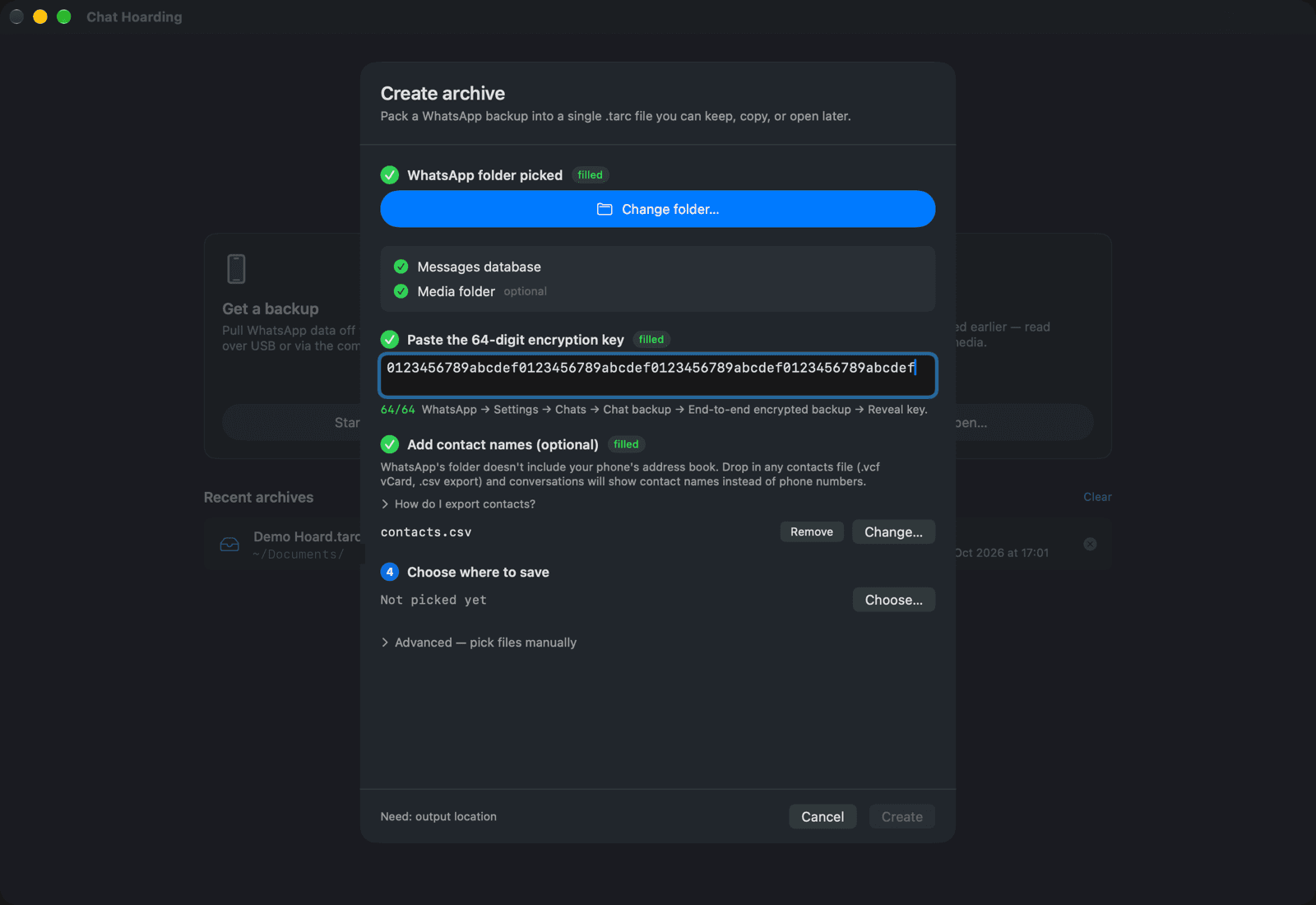
Decryption happens entirely on your Mac. The key never leaves the machine and nothing is uploaded. A wrong key stops with an error, so you never end up with garbled messages. If that happens, check you're using the key for the right account (WhatsApp and WhatsApp Business have different ones).
Getting contact names into the archive
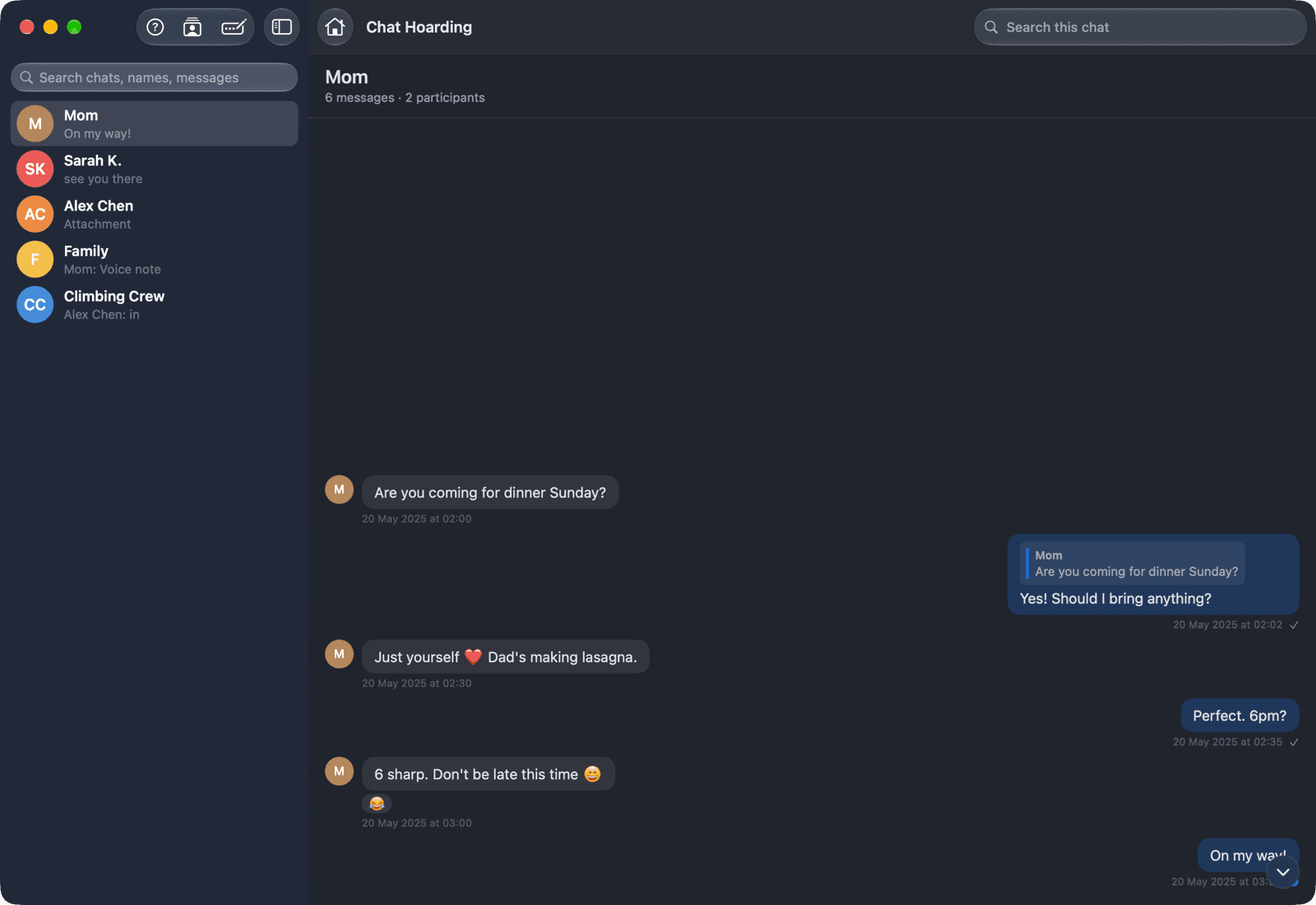
When you ticked Phone contacts as vCard, the companion put a contacts.vcf inside the zip. The Mac doesn't pull it out of the zip on its own, so it takes one extra step. Double-click the zip in Finder to expand it, then in the Create archive sheet click Pick file… under Add contact names (optional) and choose contacts.vcf from the expanded folder.
If you've already created the archive without contacts, that's fine. Open the archive, click Update Archive in the toolbar, and add the .vcf there. Any sender that still shows up as a number can be named by hand. Open a chat, use Assign Contact on that sender, and the name is saved in the archive. You can review all of those under Manage Contacts.
Troubleshooting
- No WhatsApp backup folder found: WhatsApp hasn't written a local backup yet. Turn on end-to-end encrypted backup, tap Back up, then Rescan.
- Not enough free space on this phone: the copy in Downloads needs room. Free some space, or switch to Just chats, which is much smaller.
- Contacts permission was denied: the file was saved without your address book. Allow Contacts for Chat Hoarding in Android settings and run it again, or add a .vcf on the Mac later.
- The Mac says no msgstore.db.crypt15 was found: you probably picked the wrong file or folder. Pick the .zip or .crypt15 the companion saved.
- The transfer is crawling: wireless tops out around 6 to 25 MB/s. For a big media bundle, a cable with OpenMTP or the Advanced (adb) tier is much faster.
FAQ
Can I transfer a WhatsApp backup from Android to Mac without any app on the phone?
Yes, but it's fiddly. You'd have to dig through Android/media/com.whatsapp/WhatsApp/Databases in a file manager and share the .crypt15 file yourself. The companion finds the right file, checks how fresh it is, and adds your contacts. Without a cable, it's the least painful route.
Does the companion app upload my backup anywhere?
No. It has no INTERNET permission, so it can't reach the network at all. It only writes a file to your phone's Downloads. The transfer app you choose in the share sheet is what moves the file, which is why a local option like LocalSend is the most private choice.
Is it safe to send the backup over Google Drive?
The .crypt15 chats database is encrypted under your 64-digit key, so a Just chats file without contacts is safe to pass through a cloud service. A zip with media or contacts.vcf isn't fully encrypted, so send that one locally.
Will this work with WhatsApp Business?
Yes. The companion scans WhatsApp Business backup folders too and shows them in a separate tab. Use the 64-digit key from WhatsApp Business, not your personal WhatsApp key.
My media folder is 20 GB. Can I still go wireless?
Send Just chats wirelessly to get your whole message history into an archive today. For the media, the companion hides the zip option above 1 GB and points you to Chats + media · USB cable (OpenMTP) or Advanced (adb), which are many times faster for big folders.
What if my backup is Crypt14 or Crypt12?
Chat Hoarding only decrypts Crypt15, the format WhatsApp has used for end-to-end encrypted backups since 2021. If you have an older file, restore it on the phone and run a fresh backup with the 64-digit key. Crypt12 vs Crypt14 vs Crypt15 explained (Crypt12 vs Crypt14 vs Crypt15 explained) walks through it.