
October 25, 2026 · 9 min read
WhatsApp backup contact names missing? Here's why
Decrypted WhatsApp chats showing +XX numbers or long @lid IDs where names should be? Why names aren't in the backup, and four ways to map them back on your Mac.
whatsapp backup contact names missingwhatsapp lid instead of namedecrypted whatsapp chats show phone numbers
You decrypt your WhatsApp backup, open the family group, and half the senders are +44 7700 numbers or a string like 107627602288712@lid. Nothing is broken. The backup simply never contained the names in the first place, and once you know where they actually live, getting them back takes a few minutes.
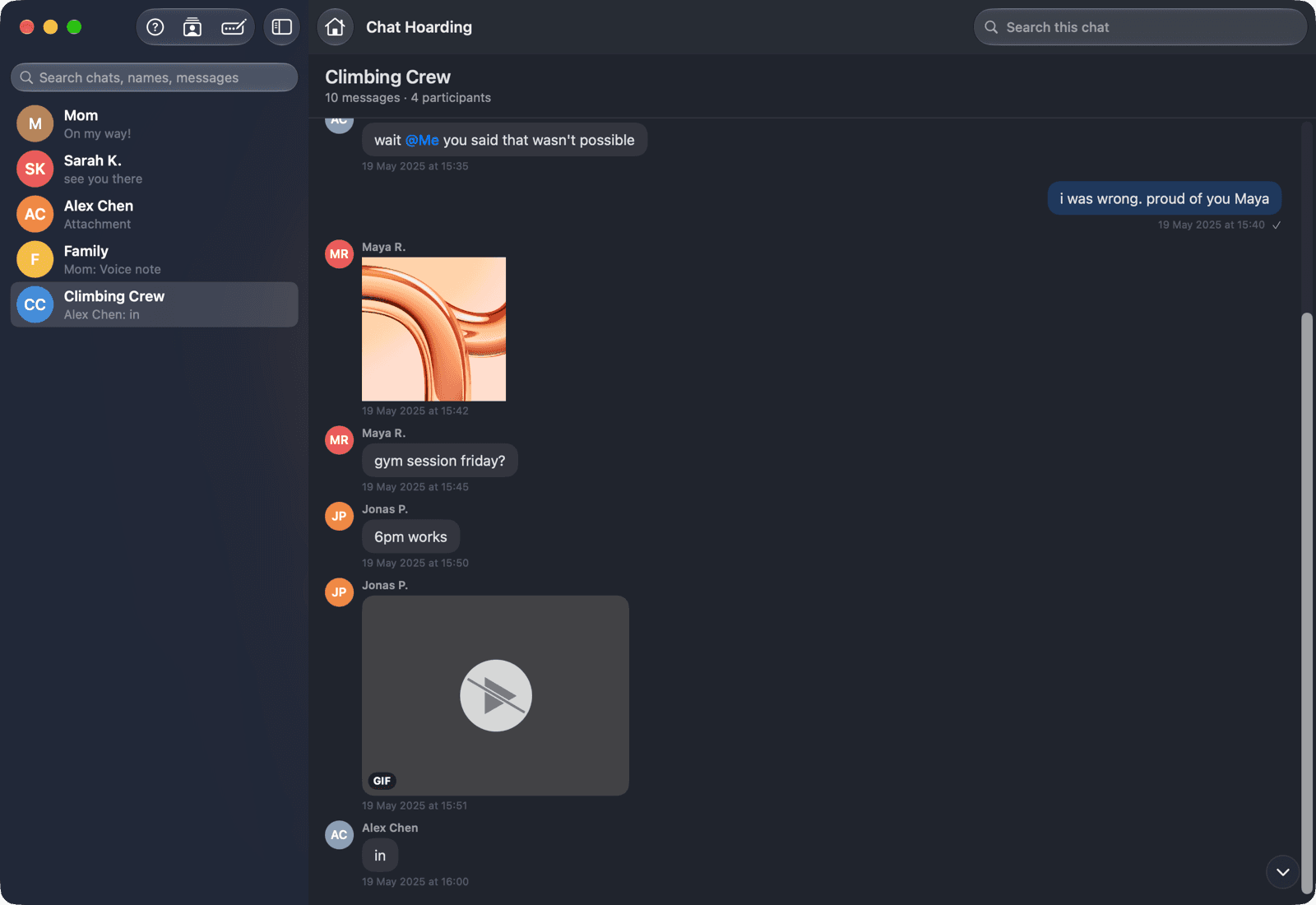
This is the most common surprise after decrypting a Crypt15 backup for the first time. Inside WhatsApp everything looks friendly: Mom, Sarah K., Alex Chen. Open the same messages from the backup file and a lot of those people turn into numbers. The reason has nothing to do with the decryption working or not. It comes down to which database WhatsApp puts in the backup, and which one it keeps for itself.
Why the backup has numbers, not names
WhatsApp doesn't identify people by name. Every chat and every sender is stored under a JID, a WhatsApp ID that looks like [email protected] for a regular account. The part before the @ is the phone number. The display name you see in the app is not part of the message at all. WhatsApp looks it up live from your phone's address book every time it draws the screen.
The backup WhatsApp writes to your phone, msgstore.db.crypt15, holds the message store: chats, messages, receipts, group membership, media references. It's the file we walked through in What's inside msgstore.db. What it doesn't hold is your address book. So when you decrypt it anywhere other than inside WhatsApp, every JID arrives without a name attached, and a viewer has nothing to show except the number.
What about wa.db?
If you've read older forum threads, you've probably seen people say "just decrypt wa.db too". wa.db is WhatsApp's own contacts database, and it does pair JIDs with names. The problem is where it lives. It sits in /data/data/com.whatsapp/databases/, WhatsApp's private app directory, which no other app can read without root. It is not in the backup folder under Android/media/com.whatsapp/WhatsApp/Databases/ that we covered in Where Android WhatsApp stores backups.
Even if you got a copy, your 64-digit backup key wouldn't open it. That key (the one from Find your 64-digit WhatsApp encryption key) unlocks the end-to-end encrypted chat backup. wa.db is tied to a separate device-bound key file that WhatsApp never shows you. Chat Hoarding doesn't root your phone and doesn't read wa.db in any form. Names come from your phone's regular address book instead, which is the same source WhatsApp uses to show names in the first place.
Your address book is the real source
WhatsApp's names are your phone's contact names. If you saved someone as "Sarah K." in your Contacts app, that's what WhatsApp shows. Hand the same address book to the archive and the same names come back, with no root and no extra keys.
The @lid problem: IDs with no phone number
Numbers you can at least recognise. The stranger case is a sender like 107627602288712@lid. These are WhatsApp's privacy identifiers, rolled out in 2024, mostly in groups and communities. The digits are an opaque ID, not a phone number, so there is nothing to look up in an address book. No contacts file in the world will turn an @lid into a name by phone number matching.
Sometimes WhatsApp itself stores a hint for these IDs inside msgstore.db, such as a name or a masked phone like +994∙∙∙∙∙∙∙25. When that hint exists, Chat Hoarding shows it. When it doesn't, you'll see the raw ID until you map it by hand, which is covered further down. The same person can also appear under both forms in one archive: their phone JID in older messages and their @lid in newer group messages.
Four ways Chat Hoarding gets names back
Chat Hoarding matches each phone-number JID against the numbers in a contacts list you give it, and lets you assign names by hand for whatever is left. There are four ways to feed it names, depending on how you got the backup onto your Mac:
- Chat Hoarding for Android adds your address book to the backup as a contacts.vcf file.
- The Advanced (adb) transfer pulls your contacts over USB automatically.
- You import a CSV or vCard you exported yourself (Google Contacts, iCloud, Outlook, your phone's Contacts app).
- You assign names manually inside the Mac app, which is also the only fix for @lid IDs.
These stack. Most people use one of the first three to cover the bulk of their contacts, then clean up the last few unknown senders by hand.
1. Let the companion app send a vCard
If you use Chat Hoarding for Android (the Easy tier), contacts are on by default. On the "How do you want this on your Mac?" screen there's a toggle called Phone contacts as vCard. Leave it on. The first time, Android asks for the contacts permission. The app reads your address book through the standard Android contacts provider and writes it as a vCard. It has no internet permission, so the file only goes where you send it.
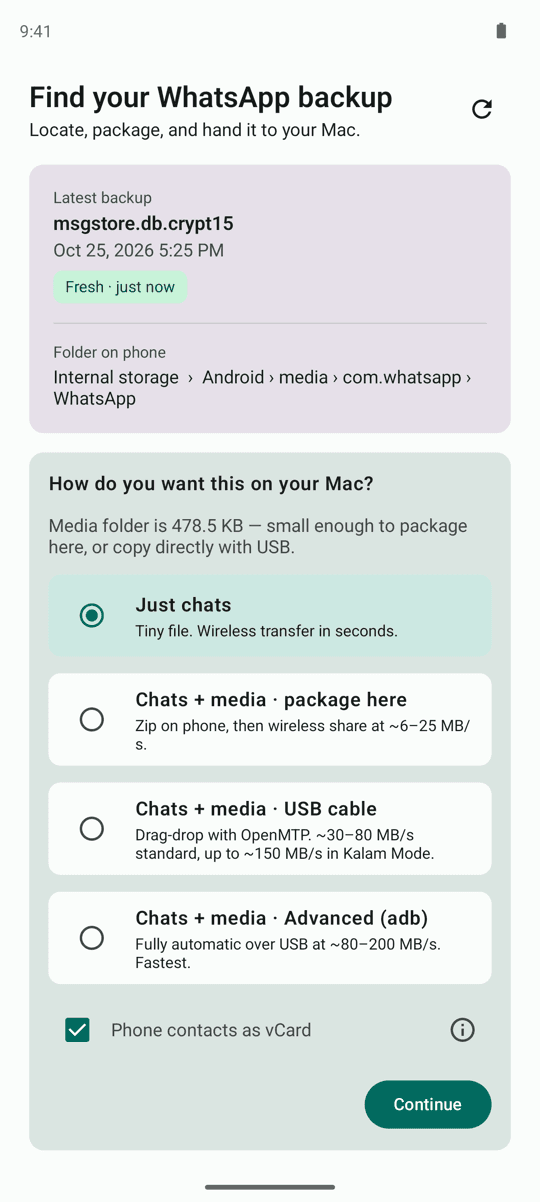
- 01In Chat Hoarding for Android, pick Just chats or Chats + media · package here, keep Phone contacts as vCard on, and tap Continue.
- 02The app packages everything into Downloads. With contacts on, you get one zip with the Crypt15 file and a contacts.vcf inside it.
- 03When the Saved to banner appears, tap Send to Mac and use Quick Share, LocalSend, or any file transfer you have. On the Mac, double-click the zip in Finder to unzip it.
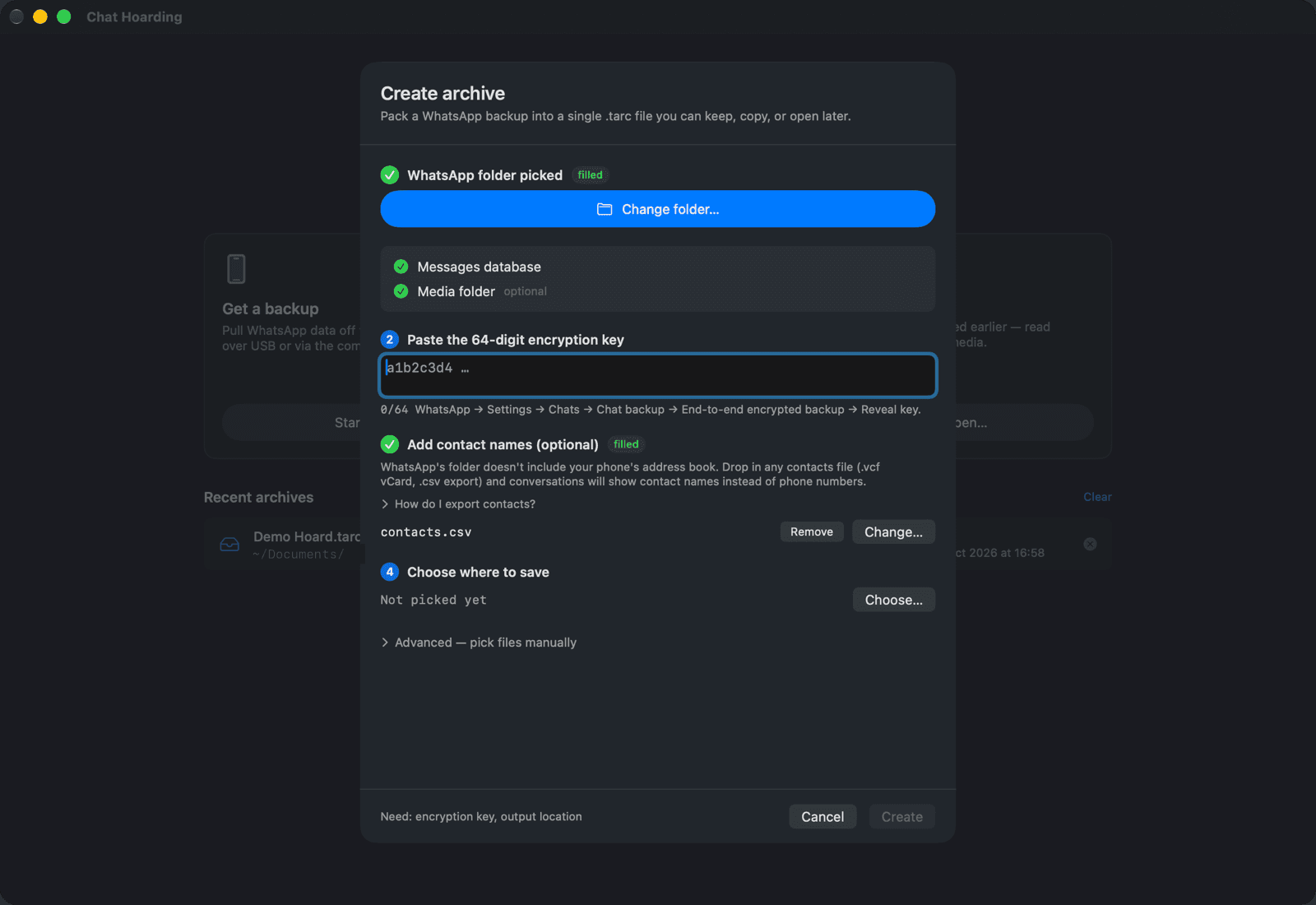
- 04In Chat Hoarding for Mac, open Create archive and pick the unzipped folder as the WhatsApp folder.
- 05Under Add contact names (optional), click Pick file… and choose the contacts.vcf from that same folder.
- 06Paste your 64-digit key, choose where to save, and click Create.
If you chose the USB cable route (Chats + media · USB cable) with Phone contacts as vCard on, the companion shows a Save contacts to Downloads button instead. That puts a small .vcf in Internal storage/Download/Chat Hoarding/ on the phone. Copy it across with the WhatsApp folder and pick it in the same Add contact names step.
2. Advanced (adb): contacts come along automatically
The Advanced tier uses the adb tool bundled inside Chat Hoarding for Mac over a USB cable with USB debugging switched on. After it copies the WhatsApp folder, it also reads your phone's contact list (the step shows as Copying contacts…) and saves it as contacts.csv next to the pulled folder. When you continue to Create archive, that file is already filled in under Add contact names (optional). There's nothing to toggle on the phone; the companion app even says so on its Advanced screen.
This works without root because a USB debugging session is allowed to query the contacts provider. It reads names and phone numbers only. If the pull returns nothing (for example, the phone was unplugged mid-way), the backup copy still succeeds and you can add a contacts file by hand.
3. Import a CSV or vCard you already have
Didn't use the companion, or your real address book lives in Google Contacts or iCloud? Export it and drop it into the same Add contact names (optional) step. If you're not sure where the export button is, the Create archive sheet has a How do I export contacts? hint under that step. Chat Hoarding accepts two kinds of file:
- vCard (.vcf) from any source: Android Contacts, iCloud, macOS Contacts, Google Contacts. This is the most reliable option. Contacts with several numbers get a match for each one.
- A simple two-column name,phone CSV, with or without a header row. Tab-separated works too.
Already saved an archive without contacts? You don't need to start over. Open the .tarc, click Update Archive in the toolbar, pick your file under Contacts (.vcf / .csv), and click Apply. The archive's contacts.json is replaced in place and the chats reload with names.
Save numbers with the country code
Matching works on the digits of the phone number. WhatsApp JIDs always carry the full international number, so contacts saved as +44 7700 900123 match cleanly. If a lot of your contacts are saved in local format without a country code, fixing them in your address book before exporting gives you a much better hit rate.
4. Assign names by hand
Whatever's left after a contacts import is usually a short list: people you never saved, old numbers, and @lid IDs. You fix these inside a saved archive, and the fix sticks. There are three ways in:
- In a one-to-one chat with an unknown person, click the Assign Contact button next to the chat title.
- In a group, click the small person icon next to an unknown sender's name on any message.
- Click the "messages · participants" line under the chat title to see everyone in the chat. Unknown people are grouped under Needs Assignment, named ones under Assigned.
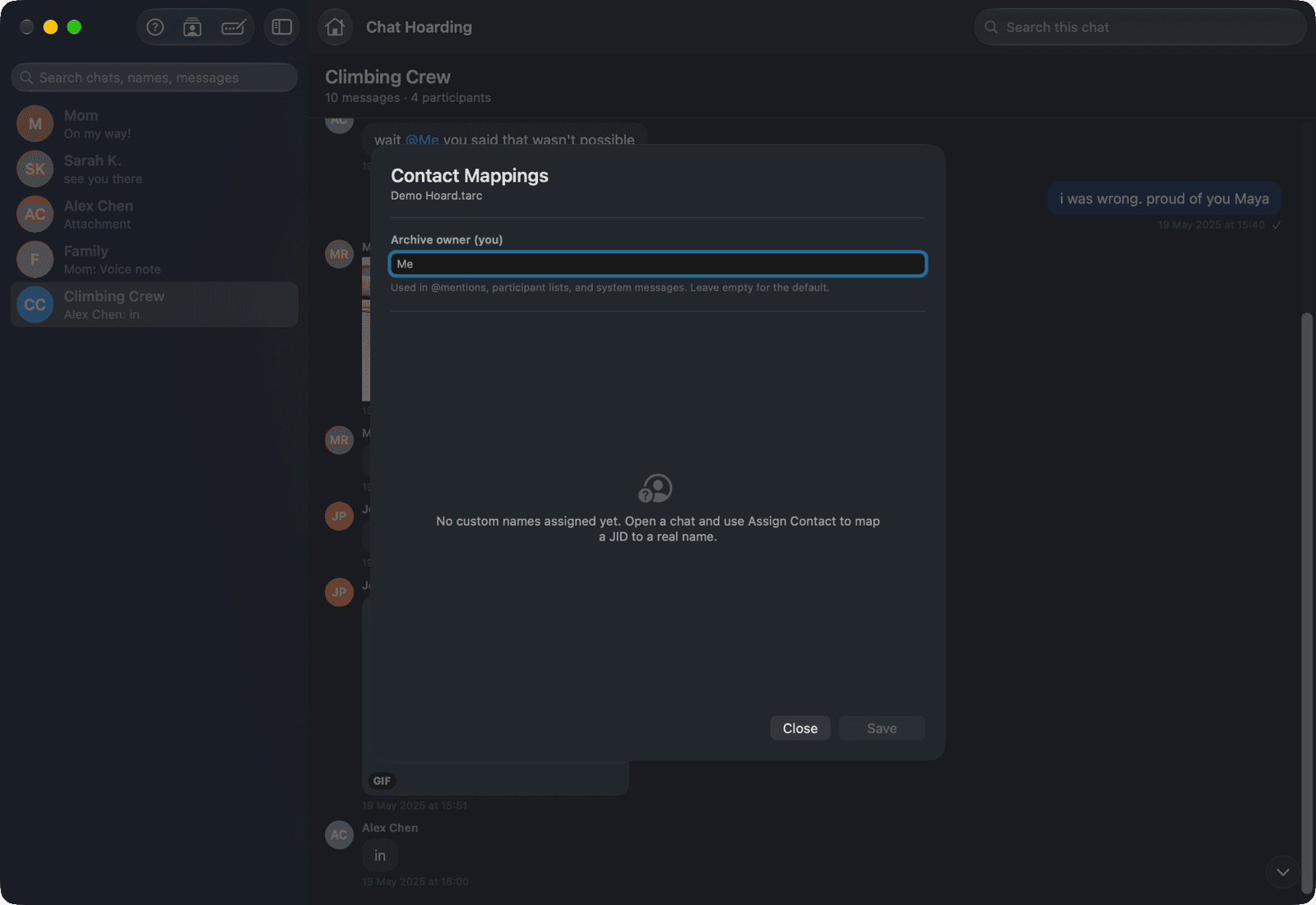
Each of these opens Edit contact mapping, with three modes across the top. Pick existing contact links this ID to someone the archive already knows, which is exactly what you want for an @lid that belongs to a person whose phone number already resolved. Custom name lets you type any name. For either of those, click Save and the name applies in every chat of the archive. This is me tags the ID as you, the archive owner, which fixes the common case of your own messages in groups showing up as a number or an @lid. In that mode the button reads Mark as Me.
Manual names are stored in manual_contacts.json inside the .tarc bundle, separate from contacts.json. Re-importing a contacts file later won't wipe them, and they travel with the archive if you copy it to another Mac. To review everything you've assigned, click Manage Contacts in the toolbar. The Contact Mappings sheet lists every mapping, lets you search by name or identifier, rename or delete entries, and set the display name used for you.
Which approach fits your situation
| Situation | Best fix | Covers @lid? |
|---|---|---|
| Using the companion app | Leave Phone contacts as vCard on | No |
| USB with Advanced (adb) | Nothing to do, contacts pull automatically | No |
| USB cable with OpenMTP | Save contacts to Downloads in the companion, add the .vcf in step 3 | No |
| An old backup, or no companion app | Export a vCard or CSV and add it in step 3 | No |
| Archive already saved without names | Update Archive with a contacts file | No |
| A few unknown senders left | Assign Contact, one by one | Yes |
If you're starting from scratch, the full walkthrough of getting a backup off the phone and into a .tarc is in Archive WhatsApp chats on Mac in 2026. Doing contacts at the same time as the first archive is the least effort, since every option above ends up in the same contacts.json.
FAQ
Why do my decrypted WhatsApp chats show phone numbers instead of names?
Because the backup only contains msgstore.db, the message store. Names in WhatsApp come from your phone's address book, which isn't part of the backup file. Add your address book as a vCard or CSV and Chat Hoarding matches the numbers back to names.
What does @lid mean in a WhatsApp backup?
It's one of WhatsApp's privacy identifiers. The digits before @lid are an opaque ID, not a phone number, so they can't be matched against your contacts. Chat Hoarding shows WhatsApp's own hint for that ID when the backup has one; otherwise you link it to the right person with Assign Contact.
Can I just decrypt wa.db with my 64-digit key?
No. wa.db isn't in the backup folder at all; it lives in WhatsApp's private app directory, which needs root to read. It's also protected by a device-bound key, not the 64-digit backup key. Chat Hoarding doesn't use wa.db and gets names from your address book instead.
Do my contacts leave my phone or Mac?
Only as a file you move yourself. Chat Hoarding for Android has no internet permission, and the Mac app matches contacts locally. The names end up in contacts.json inside your .tarc archive.
I already saved an archive without contacts. Do I have to redo it?
No. Open the archive, click Update Archive, pick a .vcf or .csv under Contacts (.vcf / .csv), and click Apply. Manual names you assigned earlier stay in place.
Some of my own messages show up under a number. How do I fix that?
Open Edit contact mapping on that number or @lid, choose This is me, and click Mark as Me. You can tag several IDs as yourself, such as your phone JID, your @lid, and an old number, and the archive treats them all as you.